
Instagram sends updates about likes, comments, messages, and Stories. These notifications can become distracting sometimes.
Thankfully, Instagram offers many notification control options. Users can manage alerts through phone settings. They can also customize alerts inside Instagram.
Key Takeaways:
- Control Instagram alerts through phone settings.
- Customize notifications for posts, Stories, and messages.
- Enable alerts for specific Instagram accounts.
Switch On or OffInstagram Notifications Through Phone Settings
Instagram notifications can be managed through device settings. This method controls alerts before they reach you.
Turn Notifications On or Off on iPhone
Open the Settings application on your iPhone device. Tap Notifications from the settings menu options.
Scroll down and select Instagram from applications. Tap Allow Notifications to enable all alerts. If enabled, the switch becomes green immediately. Turn it off to stop all notifications.
You can also manage these notification settings:
- Sounds for notification alerts.
- Badge App Icon notifications.
- Lock Screen notification display.
- Notification History visibility.
- Banner notification appearance.
Banner alerts offer two different display styles.
- Temporary banners disappear after some seconds.
- Persistent banners remain until manually removed.
Preview settings also provide additional privacy controls.
- Always show notification previews.
- Show previews when the device unlocks.
- Never display notification previews.
If Instagram does not appear, receive notifications first. Reinstalling Instagram may solve missing app issues.
Turn Notifications On or Off on Android
Open Settings from your Android smartphone menu. Select Apps from available settings categories. Find and open Instagram application settings.
Tap Notifications to access notification controls. Enable Allow Peeking for Instagram notification alerts. This option allows notifications to appear normally.
Additional notification controls include:
- Block All notifications completely.
- Show Silently without notification sounds.
- Lock Screen notification visibility.
- Override Do Not Disturb settings.
Enable Treat as Priority for important alerts. Disable Block All to receive notifications again.
Inside Instagram
Instagram includes detailed notification customization options. These settings affect your Instagram account directly.
Access Instagram Notification Settings
Follow these simple steps carefully:
- Open Instagram application.
- Visit your profile page.
- Tap the three-line menu.
- Open Settings section.
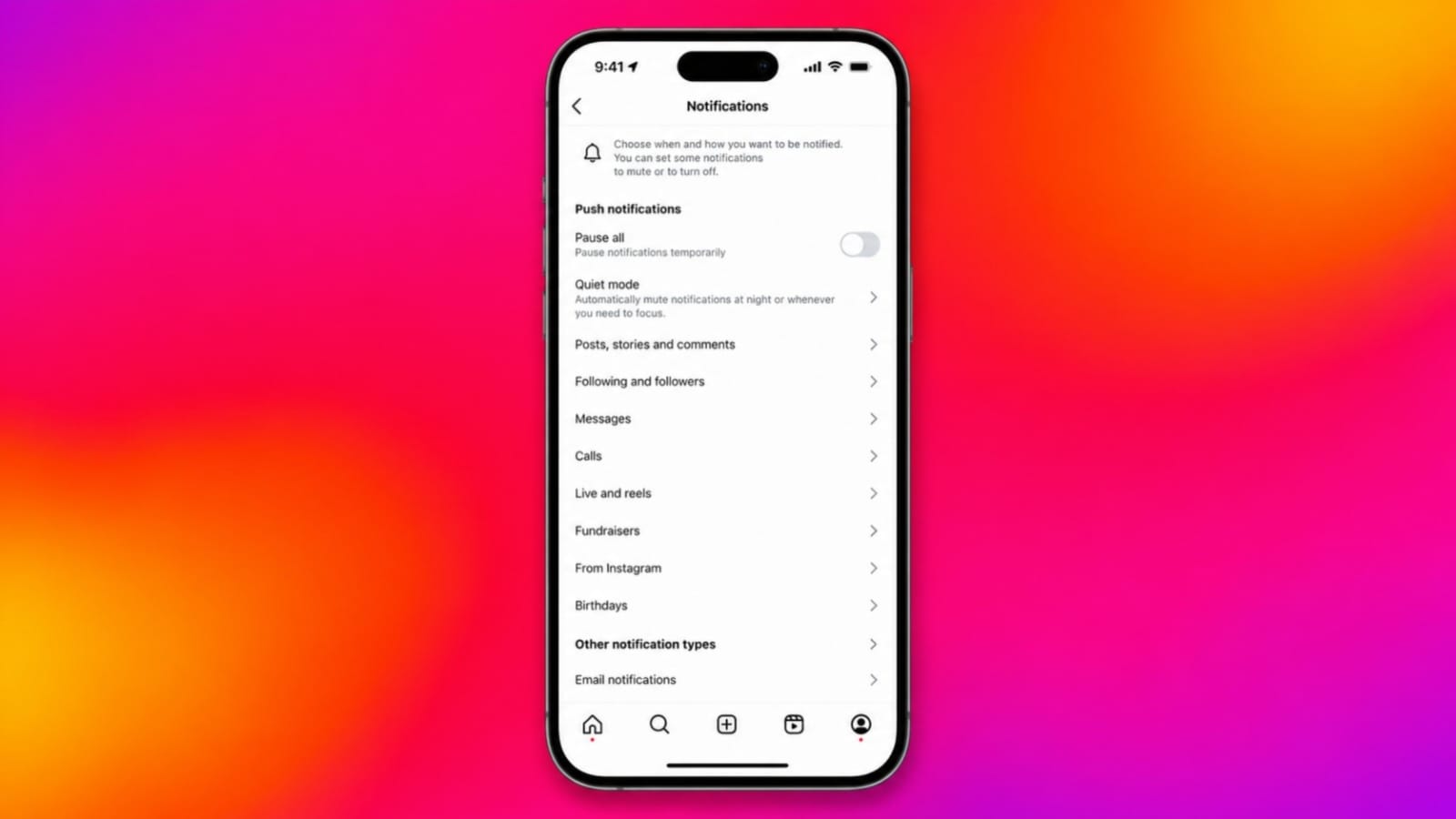
- Select Notifications option.
You will now see all notification categories.
Pause All Notifications Temporarily
Instagram offers a useful Pause All feature. This feature silences alerts for selected periods.
Follow these steps:
- Open Notifications settings.
- Tap Pause All option.
- Select your preferred duration.
Notifications can pause for these periods:
- 15 minutes.
- 1 hour.
- 2 hours.
- 4 hours.
- 8 hours.
After the selected period, alerts return automatically.
Manage Individual Notification Categories
Instagram allows detailed notification customization options. Users can disable unwanted notifications separately.
Available categories include:
- Posts.
- Stories.
- Comments.
- Likes.
- Followers.
- Direct Messages.
- Live Videos.
- Suggested Accounts.
- Shopping Notifications.
Open any category and choose notification preferences. Select Off to disable specific notification types.
You can disable all categories separately. This method stops alerts beyond eight hours.
Turn Off Email and Shopping Notifications
Instagram sends notifications through additional channels too.
These include:
- Email notifications.
- SMS notifications.
- Shopping notifications.
Simply open each section and disable alerts.
For Specific Accounts
Instagram supports notifications for individual users. This feature helps follow important account updates.
Enable Notifications for a User
Open the user’s Instagram profile page first. Follow the account if necessary beforehand. Tap the bell icon near profile details. Enable notifications for Posts and updates.
You can also enable alerts for:
- Stories.
- Live broadcasts.
- Other account activities.
Disable Notifications for a User
Visit the user’s profile page again. Tap the bell icon near profile details. Turn off notifications for preferred content. This stops alerts from that account only.
Helpful Tip
Turn off Active Status when avoiding distractions. Other users cannot easily see availability. This may reduce incoming direct messages.
The End Note
Device settings provide complete notification control options. Instagram settings offer detailed customization features.
Users can manage alerts according to preferences. These options create a better Instagram experience.