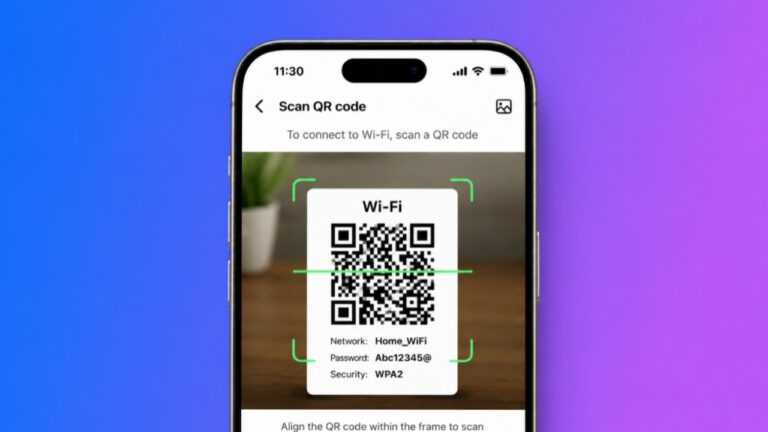


Strong passwords prevent unwanted users from joining networks. They also protect personal information and connected devices.
Regular Change Wi-Fi Password improves privacy and internet security greatly.
Key Notes:
- Strong passwords protect networks from unwanted access.
- WPA2 or WPA3 encryption provides better protection.
- Regular password changes improve long-term network security.
Reset WiFi Password: Why It Matters by Apkvenom
A Wi-Fi password protects access to wireless networks. It works like a security lock for users.
Only people with correct passwords can connect. This helps prevent unauthorized network access attempts.
Without protection, nearby people may use internet. They may also access connected network resources.
Strong passwords help protect browsing activities and data. They also secure phones, computers, and smart devices.
A Wi-Fi password is sometimes called a passphrase. It is also known as a network security key.
Changing passwords regularly improves overall network protection. It reduces risks from old shared passwords.
Access Router Settings
Start by connecting a device to the network. Use Wi-Fi or Ethernet cable for connection.
If Wi-Fi access is unavailable, use Ethernet. This bypasses password requirements during setup.
Open a web browser on a connected device. Enter your router address into the browser bar.
Common router addresses include these examples:
- 192.168.1.1
- 192.168.0.1
- 192.168.2.1
- 10.0.1.1 for Apple routers
Press Enter and open the router configuration page. Then enter login details for router access.
Many routers use default login information below:
- Username: admin
- Password: admin
- Password: password
Some router models use different credentials instead. Check manuals or manufacturer websites for details.
If login information is forgotten completely, reset. Hold the router reset button for thirty seconds.
This restores factory settings and default credentials. Existing router settings will also be erased.
Reset WiFi Network Password by Apkvenom
After login, locate the Wireless settings section carefully. Names vary between router manufacturers and models.
Look for sections named Wireless or Setup. Open the wireless settings management page.
Find password fields using labels like these:
- Password
- Passphrase
- Shared Key
- Security Key
Enter a new password inside the selected field. Some routers request password confirmation again.
Choose a password that remains difficult guessing. Avoid personal information within network passwords.
Use uppercase and lowercase letters together always. Add numbers and special characters whenever possible.
Strong passwords should contain many random characters. Longer passwords offer stronger security protection overall.
A password manager can help create passwords. It also stores passwords securely for users.
Store new passwords safely after making changes. Secure note applications can help greatly.
Security Settings And Troubleshooting
Choose proper encryption before saving new settings. WPA2 provides excellent security for most users.
WPA3 offers stronger modern protection when available. WPA remains useful for certain older devices.
Avoid WEP encryption because protection remains weak. Attackers can break WEP security very easily.
Click Apply, Save, or Submit after changes. Router processes settings and updates network access.
Connected devices disconnect after password updates occur. Reconnect each device using new password.
Test internet access after reconnecting all devices. Verify websites and applications work correctly.
Additional security measures improve network protection further:
- Enable WPA2 or WPA3 encryption
- Disable remote router management access
- Enable MAC address filtering protection
- Disable SSID broadcasting when preferred
- Update router firmware regularly
Users may face several common issues afterward. Forgotten passwords usually require router resetting.
Incorrect login details may need default credentials. Router resets restore original login information.
Slow connections may require router restarting afterward. Check device passwords and channel interference.
Older devices sometimes experience compatibility limitations. WPA2 usually supports older hardware successfully.
The End Note
Strong passwords protect data, devices, and privacy. Combined with encryption and security settings, networks remain safer.
Following these steps ensures reliable and secure connections.