
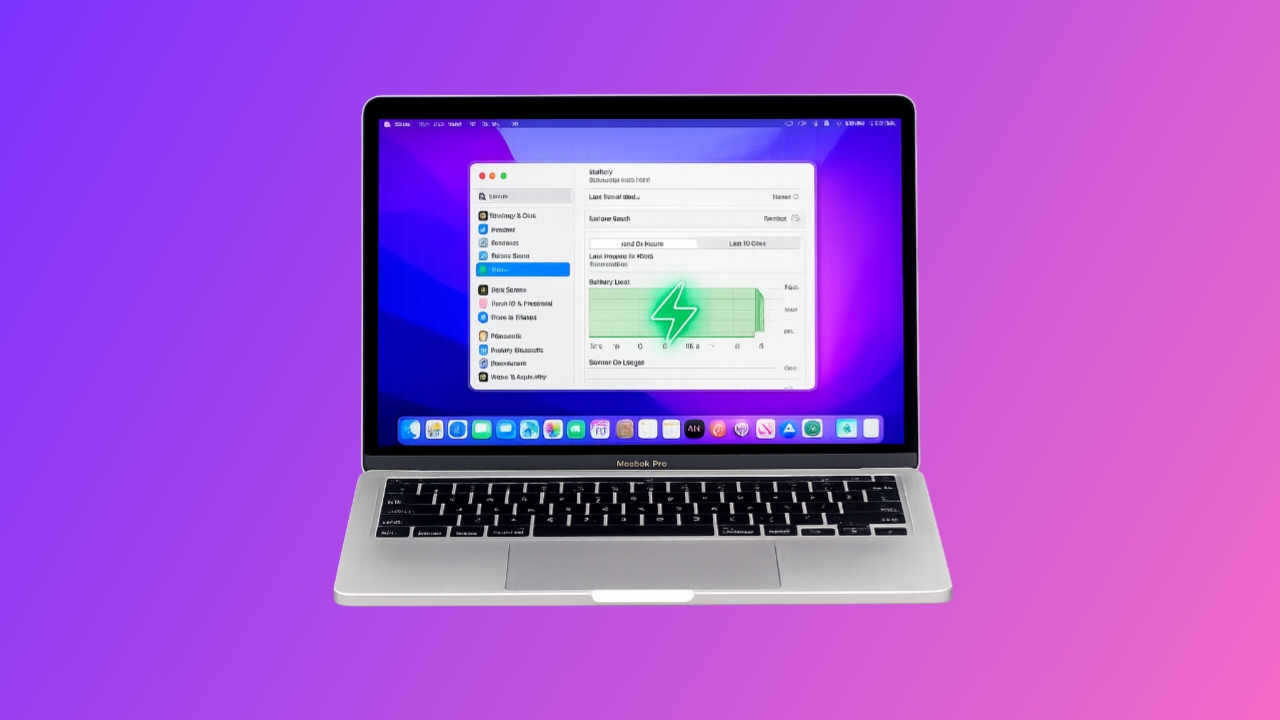

Battery details explain your MacBook current performance condition clearly. Apple includes useful battery tools inside macOS settings directly.
These features help users avoid sudden battery performance problems. Users can also understand long-term battery aging much better by checking MacBook Battery Health And Cycle Count timely.
Check Your MacBook Battery Health And Cycle Count Easily
Apple provides battery information through simple system settings menus. Users can quickly access important battery details within minutes.
These tools work without downloading extra third-party applications separately.
Open Battery Settings On Your MacBook
First, open the System Settings application carefully. Now select the Battery section from the sidebar menu.
Users will notice battery information options inside the settings screen. Press the small information button beside Battery Health.
A new battery details window appears immediately afterward. This section contains several important battery performance details.
Understand Battery Condition Information Properly
Battery Condition explains overall battery performance status clearly. Most healthy batteries display the word “Normal” inside settings.
This result means the battery performs within expected limits. Sometimes users may notice “Service Recommended” appearing instead there.
This warning suggests battery performance dropped below optimal levels. Users should consider professional battery replacement after this message.
Battery condition changes naturally after years of regular usage. Older batteries usually provide shorter backup after complete charging. Heavy applications may also increase battery stress significantly daily.
Learn About Maximum Capacity Percentage
Maximum Capacity shows current battery strength percentage remaining. This percentage compares current performance against original battery condition.
New MacBooks always begin with full hundred percent capacity. Battery capacity slowly decreases through regular charging and discharging.
Small percentage drops remain completely normal over extended ownership periods. However, sudden capacity reductions may indicate hidden battery problems.
Healthy batteries usually decline gradually after repeated charging cycles. Faster declines sometimes happen because of extreme temperatures frequently. Heavy gaming and editing workloads also reduce capacity faster.
Enable Optimized Battery Charging Feature
Apple created optimized charging for longer battery lifespan protection. This feature delays charging beyond eighty percent intelligently sometimes.
It studies daily charging habits and usage routines automatically. Optimized charging reduces battery stress during overnight charging sessions.
Users should always keep this useful feature turned on. The feature improves battery longevity across several years successfully. To check this feature, open Battery settings again.
Press the information button beside the Battery Health section. Scroll downward and confirm optimized charging remains enabled properly.
Why Battery Health Matters Daily
Battery health affects everyday MacBook performance and reliability greatly. Weak batteries may discharge quickly despite complete charging sessions.
Users may also notice sudden shutdowns during important work. Poor battery health can reduce overall laptop speed sometimes.
macOS may lower performance to protect damaged batteries internally. Healthy batteries always support smoother and longer daily performance.
Check Correctly
Battery cycle count explains long-term battery wear more accurately. Apple uses charging cycles for measuring battery lifespan expectations.
Understanding these numbers helps users monitor battery aging properly.
What Is A Battery Charge Cycle?
A battery cycle happens after using complete battery power. However, one cycle may require several charging sessions combined. Many users misunderstand how charge cycles actually work daily.
For example, using half the battery today counts partially only. Charging fully afterward does not complete one entire cycle.
Repeating similar usage tomorrow completes one charging cycle finally. Apple explains this process through official support documentation clearly.
This system measures actual battery usage instead of charging frequency alone. Users should understand this calculation before checking cycle counts.
How To Find Battery Cycle Count
Open the System Settings application on your MacBook device first. Select General settings and choose About from the menu afterward.
Scroll downward completely and open the System Report section carefully. Inside the left sidebar, select the Power category from the list.
Users will notice the Health Information section within battery details. Battery cycle count appears directly under this important heading. This section also shows maximum capacity and battery condition.
Combined information explains the complete battery health situation more accurately. Users should check these numbers regularly for better monitoring.
Apple’s Expected Battery Lifespan Standards
Most MacBooks released after 2009 support thousand charging cycles. Apple designed batteries retaining eighty percent capacity after reaching limits.
Many MacBooks since 2010 follow similar lifespan expectations too. Reaching thousand cycles does not stop MacBooks from functioning completely.
Batteries simply provide weaker performance after extensive charging history. Charge holding capacity usually becomes noticeably lower afterward. Peak power delivery may also reduce after excessive cycle counts.
Users sometimes experience shorter backup during daily working sessions. Batteries may discharge faster despite reaching complete charge percentages.
Understand Normal Capacity Reduction Patterns
Battery capacity naturally decreases through everyday charging and usage routines. Apple expects gradual performance decline after repeated charging cycles naturally.
Most batteries lose small percentages every fifty charging cycles. Healthy batteries generally lose one or two percentages gradually yearly.
Extreme temperatures can increase battery aging much faster unexpectedly. Heavy workloads may also increase battery stress levels daily.
Users should monitor cycle count alongside maximum capacity information regularly. These details together explain complete battery aging conditions accurately.
Sudden unusual drops may indicate defective battery hardware internally.
When Users Should Contact Apple Support
Users should contact Apple after unusual battery performance changes immediately. Very fast capacity reduction may indicate defective battery components internally.
Swelling batteries also require professional inspection without unnecessary delays. If maximum capacity reaches eighty percent unusually quickly, seek assistance.
Apple warranty sometimes covers defective battery replacement services completely. Support teams can diagnose hidden battery issues professionally afterward.
Better Longevity
Proper battery habits improve MacBook lifespan and performance significantly. Apple recommends several useful practices for maintaining healthier batteries.
Following these habits prevents faster battery aging problems effectively.
Keep macOS Updated Always
Latest software updates improve battery management and efficiency continuously. Apple regularly fixes hidden battery-related issues through system updates.
Updated software also improves charging behavior and optimization performance. Modern macOS versions include better power-saving management tools additionally.
Improved optimization reduces unnecessary background battery consumption daily. Users should install updates whenever Apple releases them publicly.
Avoid Very Hot Or Cold Temperatures
Extreme temperatures damage lithium-ion batteries much faster than normal conditions. Hot environments especially reduce long-term battery performance very quickly.
Very cold conditions may temporarily lower charging efficiency significantly. Never leave MacBooks inside parked vehicles during summer afternoons.
Use laptops inside comfortable room temperatures whenever possible instead. Proper ventilation also prevents overheating during demanding workloads regularly.
Optimize Power Saver Settings
macOS includes useful power-saving settings for better battery efficiency. Lower screen brightness helps reduce unnecessary battery consumption considerably.
Sleep settings also save power during inactive usage periods. Unused applications sometimes consume battery power silently in the background daily.
Closing unnecessary programs improves overall efficiency and battery performance greatly. Users should monitor battery usage through Activity Monitor frequently.
Store MacBooks Correctly During Long Breaks
Long-term storage always requires proper battery preparation. Apple recommends storing unused MacBooks at around fifty percent charge.
Completely empty batteries may degrade faster during extended storage. Turn off laptops completely before storing them for several weeks.
Store devices inside cool and dry environments whenever possible. Proper storage habits protect battery health during inactive periods effectively.
Simple Habits Improve Battery Lifespan Greatly
Avoid complete battery discharges whenever possible during regular usage. Frequent deep discharges increase battery stress levels over time.
Smaller charging sessions usually remain healthier for lithium-ion batteries. Users should unplug chargers after reaching complete battery percentages regularly.
Constant charging may create unnecessary heat and charging stress. Balanced charging habits improve long-term battery performance significantly.
The Bottom Corner
Regular monitoring of MacBook Battery Health And Cycle Count prevents unexpected performance problems during important daily tasks.