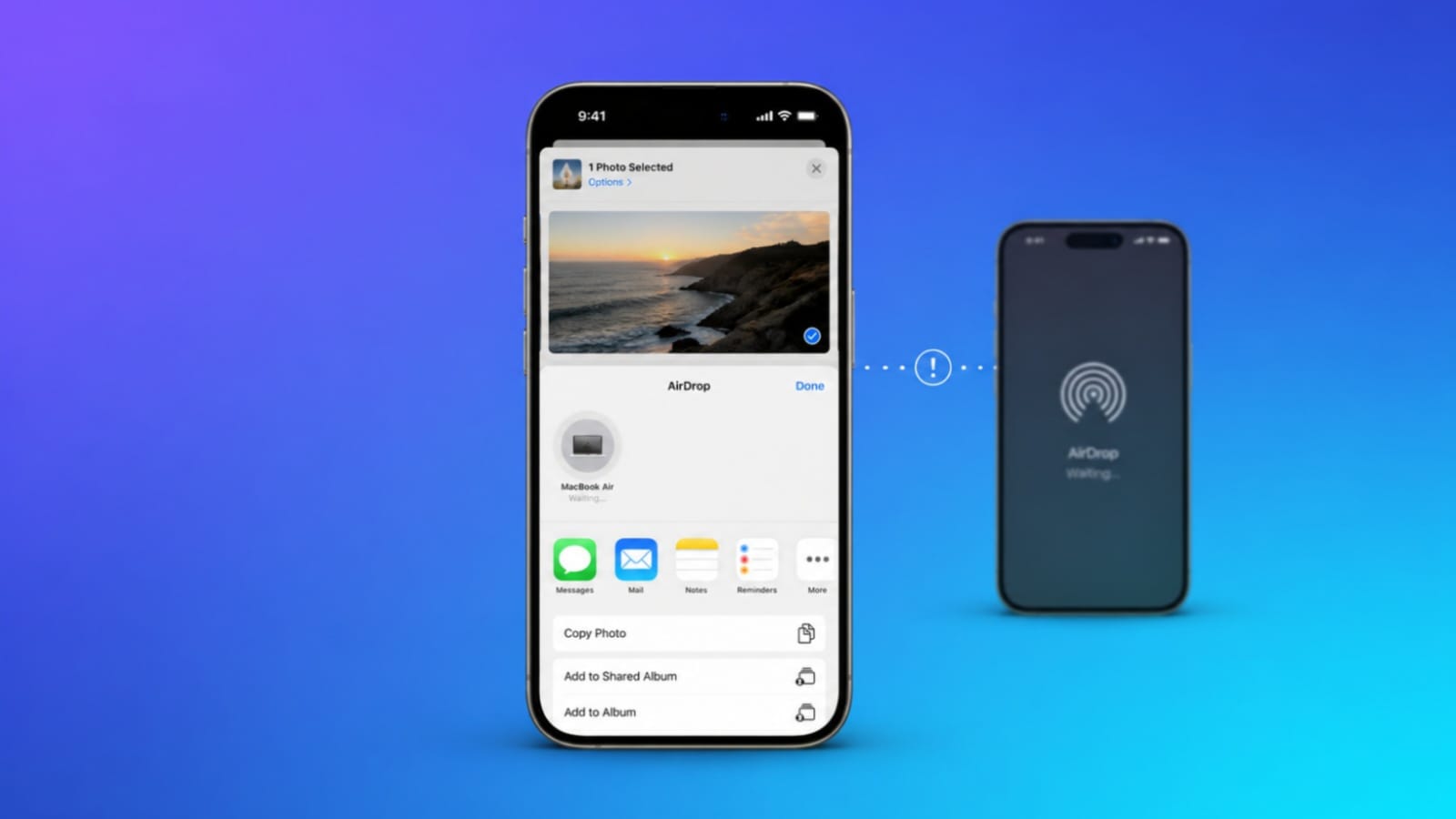

AirDrop helps transfer files between nearby Apple devices. Sometimes sharing suddenly stops working. Given practical solutions to fix Airdrop not working and quickly restore smooth file transfers.
Key Notes:
- Check AirDrop, Wi-Fi, and Bluetooth settings.
- Keep devices nearby and properly updated.
- Verify storage, battery, and network settings.
Fix AirDrop Not Working Issues: Check Device Support First
Before trying advanced fixes, check compatibility. AirDrop works only on supported Apple devices.
Supported devices include the following models:
- iPhone 5 or newer devices
- iPad fourth generation or newer models
- iPad mini supported tablet models
- iPod touch fifth generation or newer
- Mac computers from 2012 or later
Mac devices need compatible software installed. Older devices may not support AirDrop properly. Confirm both devices support AirDrop features.
Compatibility issues can block transfers completely. AirDrop works between iPhones, iPads, and Macs.
The feature transfers files quickly and wirelessly. Many users compare it with advanced Bluetooth sharing.
Verify Settings and Visibility
Incorrect settings often cause AirDrop problems. Open Control Center on both devices. Check whether AirDrop remains enabled properly. AirDrop should not remain accidentally disabled.
Also verify Bluetooth remains turned on. Wi-Fi must stay enabled for transfers. Both technologies work together during sharing.
Disabled settings can stop device detection. Review AirDrop visibility settings carefully. Open Settings and select General first. Tap AirDrop and check available options.
Visibility settings include these common choices:
- No One
- Contacts Only
- Everyone
- Everyone for 10 Minutes
Contacts Only allows saved contacts access. Everyone settings allow nearby device connections.
Make sure both devices use suitable settings. Public places require careful visibility choices. Many users prefer limited visibility settings.
Improve Connection Quality
Distance affects AirDrop performance significantly. Keep both devices relatively close together. Thirty feet remains the recommended distance. Greater distances may weaken device detection.
Walls can reduce wireless signal strength. Electronic devices may create interference nearby. Move devices closer when transfers fail.
A stronger connection improves sharing reliability. Restarting devices often fixes temporary problems.
Restart your iPhone, iPad, or Mac. Then test AirDrop functionality once again. This simple step solves many issues.
Remove Network Conflicts
Some network services affect AirDrop performance. VPN applications sometimes interrupt wireless communication.
Disable your VPN temporarily for testing. Check whether AirDrop starts working normally. Personal Hotspot may also create conflicts. Turn off Personal Hotspot before sharing.
Network-related applications sometimes cause interference. Removing conflicts may restore proper operation.
Many connection issues disappear after adjustments. Always test AirDrop after each change.
Check Battery, Storage, and Updates
Battery levels can affect AirDrop performance. Bluetooth and Wi-Fi consume additional power. Low battery levels may reduce reliability.
Charge devices when batteries become low. Battery levels below twenty percent matter. Check whether Low Power Mode operates.
Disable Low Power Mode temporarily if needed. Storage space also affects file transfers. Receiving files requires available device storage.
Full storage may prevent successful transfers. Delete unused applications and unnecessary files. Free additional space before trying again. Some shared files remain stored in iCloud.
Ensure files download correctly before sharing. Software updates can also resolve issues. Apple regularly releases important system improvements.
Open Software Update from device settings. Install pending updates whenever available. Enable Automatic Updates for future fixes. If problems continue, contact Apple Support.
Explain completed troubleshooting steps clearly. Persistent issues may indicate hardware failures. Professional servicing may become necessary eventually.
The End Note
Verify compatibility, connections, storage, battery, and updates to Troubleshoot AirDrop Issues.
Most sharing problems disappear after these solutions. If difficulties continue, professional support may identify deeper hardware concerns.