
Apple offers many privacy tools for users. These settings help protect important personal information.
Apps often collect data for advertising purposes. Learning to Stop Apps From Tracking Your Data On iPhone improves overall protection.
Stop Apps From Tracking Your Data On iPhone With Tracking Controls
Apple promotes privacy as a major feature. The company frequently highlights strong privacy protection. One important feature controls app activity tracking.
Many applications track activity across websites. They also track activity across other applications. This information often supports advertising systems.
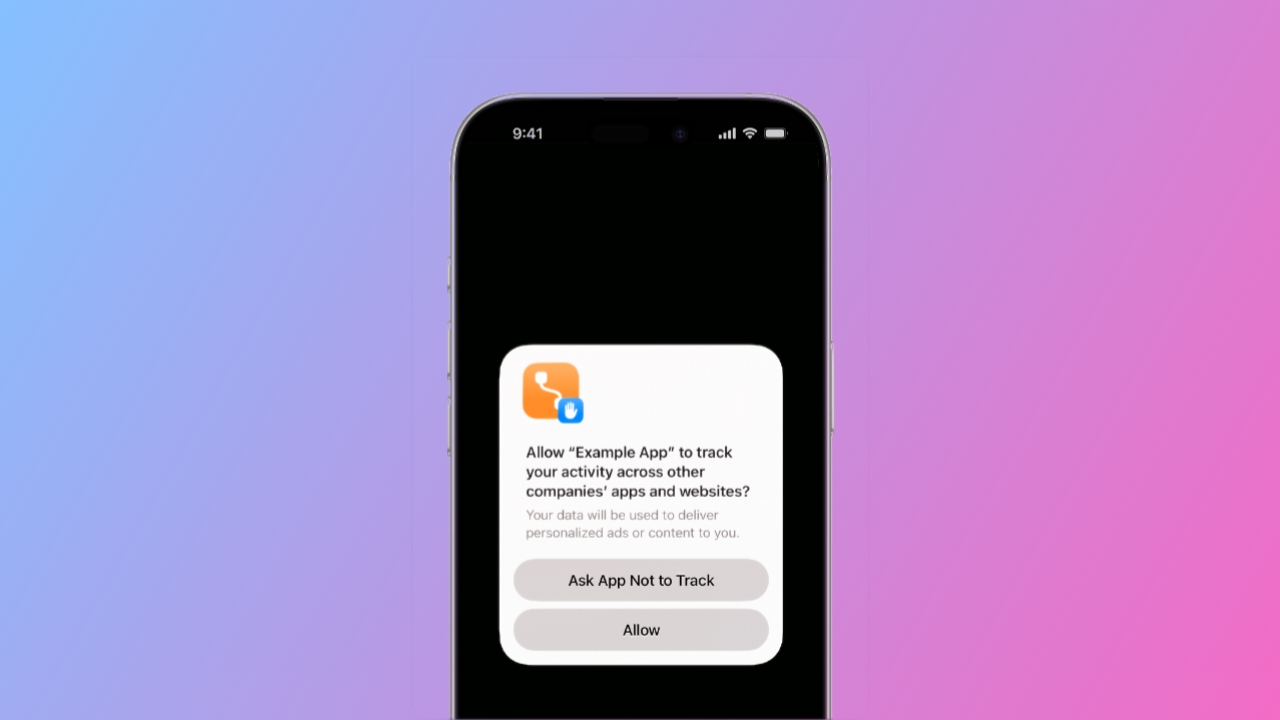
Apple introduced stronger controls with iOS 14.5. Apps must now request permission before tracking. Users receive a special tracking permission message.
The message explains how data gets used. It often mentions personalized advertising purposes. Users can then choose their preferred option.
Select Ask App Not To Track
When the tracking request appears, choose carefully. Select Ask App Not to Track immediately.
This option blocks tracking permissions completely. The application still works after selection. Most features continue working without limitations.
Apple confirms users keep full functionality. Refusing tracking does not disable app features. Users still enjoy normal application performance.
Why This Option Matters
Choosing this option improves privacy significantly. It blocks access to important identifiers.
Developers cannot access the advertising identifier. This identifier is called the IDFA. Many companies use it for tracking.
The identifier helps follow user behavior. It connects activities across multiple services. Blocking access reduces data collection greatly.
Developers also lose access to identifiers. These identifiers may reveal user information. Email-related identifiers become unavailable as well.
This creates stronger protection against tracking. It also limits advertising-related profiling activities.
Stop Apps From Tracking For Every App
Some users prefer stronger privacy controls. They may dislike repeated tracking requests.
Apple provides an option for everyone. Users can disable tracking requests entirely.
How To Disable Tracking Requests
Follow these simple steps carefully:
- Open Settings on your iPhone.
- Select Privacy & Security.
- Tap Tracking.
- Disable Allow Apps to Request to Track.
Once disabled, future requests disappear completely. Apps cannot ask for tracking permission.
Your iPhone automatically rejects these requests. Apple treats every request as declined. The process becomes automatic and simple.
Why Disable Tracking Completely
This method saves time every day. Users avoid handling repeated permission messages.
Privacy protection becomes stronger and simpler. Every application receives the same restriction.
People concerned about privacy often prefer this method. It offers broader protection with little effort.
Through Location Settings
Location Services represent another privacy concern. This feature tracks movement throughout the day.
Apple uses location information for services. Weather forecasts depend on location accuracy. Navigation applications also require location data.
Location Services gather information from:
- GPS signals
- Wi-Fi connections
- Mobile network towers
While useful, this feature tracks movements. It can also drain battery life quickly.
Review Location Permissions Carefully
Not every application needs location access. Review permissions regularly for better privacy.
To manage permissions:
- Open Settings.
- Select Privacy.
- Tap Location Services.
You can control access individually. Every application receives separate settings.
Understanding Permission Options
Apple provides three permission choices.
Never
The application cannot access your location. No location information becomes available.
While Using
The application accesses location when open. Background tracking remains unavailable.
Always
The application accesses location anytime requested. This includes background operation periods.
Which Apps Need Location Access
Some applications genuinely require location information. Navigation tools need accurate positioning.
Examples include:
- Apple Maps
- Google Maps
- Waze
Weather applications also require location access. Siri benefits from location information too.
Siri uses location for local searches. It helps find nearby services quickly.
Examples include:
- Hotels
- Cafes
- Cinemas
- Local businesses
Which Apps May Not Need Location
Many social media applications function normally. They often work without location access.
Examples may include:
- Similar social platforms
Removing unnecessary permissions improves privacy protection. It also limits unwanted tracking.
Manage Contacts, Calendars And Reminders Access
Many applications request personal information access. Contacts and schedules contain valuable details.
Some applications need these permissions legitimately. Others may not require such access.
Common reasons include:
- Contact sharing
- Data backup
- Record editing
- Schedule management
Review permissions regularly for safety. Disable access when permissions seem unnecessary. This simple review improves overall privacy.
Control Photo, Camera And Microphone Permissions
Many applications request media-related permissions. These permissions provide access to sensitive content.
Video communication applications often require access. Voice messaging tools also need permissions.
Examples include:
- Skype
- Viber
Camera applications require camera permissions naturally. Voice recording tools need microphone access.
Why Photo Access Matters
Some applications require photo access. Cloud storage services often need permissions.
Dropbox may access photos for syncing. Note-taking applications may add image support. Evernote represents one common example. It may use images inside notes.
What To Do When Unsure
Sometimes permission requests seem confusing. Users may not understand the reason. In such cases, disable access temporarily. Then test the application normally.
If nothing changes, keep access disabled. If features stop working, restore permissions. This approach improves privacy without risks.
Control Motion And Fitness Tracking
Fitness tracking records physical activity details. The system monitors movement and steps.
Health applications frequently use this information. Fitness services may request activity access.
Users can manage permissions individually. Each application receives separate controls.
People uninterested in fitness tracking can disable everything. This reduces unnecessary information sharing.
Review HomeKit Privacy Settings
HomeKit supports smart home management. Many connected devices use this platform.
Examples include:
- Smart lights
- Smart appliances
- Connected home accessories
The HomeKit section lists connected devices. Review permissions regularly for better security.
Understanding connected devices improves overall privacy awareness.
Limit Advertising Data Collection
Advertising systems collect significant information. Many users remain unaware of this process.
Apple gathers information for advertising purposes. The information becomes part of larger datasets.
Examples may include:
- Gender information
- Music preferences
- Reading interests
- Device information
- Location information
- Age information
Apple states data becomes grouped information. Individual users are not directly identified.
Large datasets support relevant advertising systems. Apple may use this information internally. Some information may support third-party advertising.
Enable Limit Ad Tracking
Users seeking greater privacy have options.
Follow these steps:
- Open Settings.
- Select Privacy.
- Tap Advertising.
- Enable Limit Ad Tracking.
This reduces advertising-based tracking activities.
Reset Advertising Identifier
Users can also reset identifiers. This removes collected advertising information. The device appears like a new user. Previous advertising profiles become less useful.
Learn More About Advertising Data
Apple provides additional privacy information. Users can review detailed explanations. Open the Advertising settings section. Select About Advertising & Privacy.
This page explains collected information clearly. Understanding data practices supports informed decisions.
Use Search To Find Privacy Settings Faster
Apple hides many settings deeply. Finding them sometimes becomes difficult. Fortunately, Settings includes a search feature. The search bar appears near the top.
Type the setting name directly. Results appear quickly and accurately. This method saves time significantly. It helps locate privacy options faster.
As We Conclude
Stop Apps From Tracking Your Data On iPhone using built-in privacy controls. Review permissions regularly across every category. Limit tracking, advertising, and location sharing.
These simple adjustments strengthen privacy protection while keeping useful iPhone features available every day.