
Slow boot times can waste valuable time daily. Several settings, programs, and hardware problems contribute.
These solutions can improve Windows 11 startup speed significantly.
Key Summaries:
- Disable unnecessary startup apps for faster loading and fix windows 11 slow startup.
- Update drivers and repair damaged system files.
- Upgrade to an SSD for major improvements.
Fix Windows 11 Slow Startup by Adjusting Important Settings
Windows 11 includes features that affect startup. Some settings improve speed on certain systems.
Other settings may create startup problems instead.
1 Check Fast Startup Settings
Fast Startup comes enabled on many computers. This feature saves boot information before shutdown. It aims to reduce startup waiting times.
However, Fast Startup sometimes causes boot issues. Many users report slower startup performance. Testing this setting can reveal problems.
Press Win + R and type control. Open the Control Panel and choose Power Options. Click Choose what the power buttons do.
Select Change settings that are currently unavailable. Uncheck Turn on fast startup temporarily. Save changes and restart your computer.
If Fast Startup remains disabled already, enable it. Some computers perform better with activation. Test both options for best results.
If the option does not appear, enable hibernation. Open Terminal with administrator permissions first. Then enter the following command carefully:
powercfg /hibernate on
Check Fast Startup settings again afterward.
2. Adjust Virtual Memory Settings
Windows uses virtual memory during heavy workloads. This memory uses storage as backup RAM. The paging file manages this process.
Incorrect paging file settings may slow startup. Windows sometimes changes these settings automatically. Reviewing them may solve boot problems.
Search Performance from the Start menu. Open performance settings and select Advanced. Click Change under virtual memory settings.
Compare recommended and allocated memory values. Some computers show unusually large allocations. This can affect startup performance negatively.
Disable automatic management if necessary. Choose Custom Size for the paging file. Enter recommended values shown by Windows. Restart your computer after making changes.
3. Disable Windows Subsystem for Linux
Windows Subsystem for Linux supports Linux software. Developers often use this feature regularly. Most users never need this functionality.
Search Windows Features from the Start menu. Open the feature management window. Find Windows Subsystem for Linux below.
Uncheck the feature and restart Windows. This step may improve startup performance.
By Managing Programs
Programs loading during startup often cause delays. Many applications start automatically after installation. These programs consume memory and processing resources.
1 Disable Unnecessary Startup Applications
Press Ctrl + Shift + Esc together. Open Task Manager and select Startup Apps.
Review every startup application carefully. Disable programs that are not essential. Fewer startup apps create faster loading times.
You can also use Windows Settings. Press Windows + I to continue. Open Apps and then Startup settings.
Check the startup impact information provided. Disable applications with high startup impact.
2. Remove Unnecessary Files and Programs
Computers collect unwanted files over time. Old programs and temporary files create clutter. This clutter affects startup and performance.
Remove software you no longer use. Delete unnecessary files from your system. A cleaner computer performs more efficiently.
3. Perform a Clean Boot
A clean boot helps identify software problems. Windows starts with limited services enabled.
This process reveals startup-related conflicts quickly. If startup improves after clean booting, another application likely causes the issue.
Updates and Hardware
Hardware and drivers strongly affect boot speed. Updating components often improves overall performance.
1 Update Graphics Drivers
Outdated drivers can create startup delays. Graphics drivers commonly affect boot performance. Updating them may solve startup issues.
Open Device Manager from the Start menu. Expand Display Adapters to identify hardware. Check Nvidia, AMD, or Intel updates.
Install available graphics driver updates immediately. Restart Windows after completing installations. Also install pending Windows updates.
2. Run an SFC System Scan
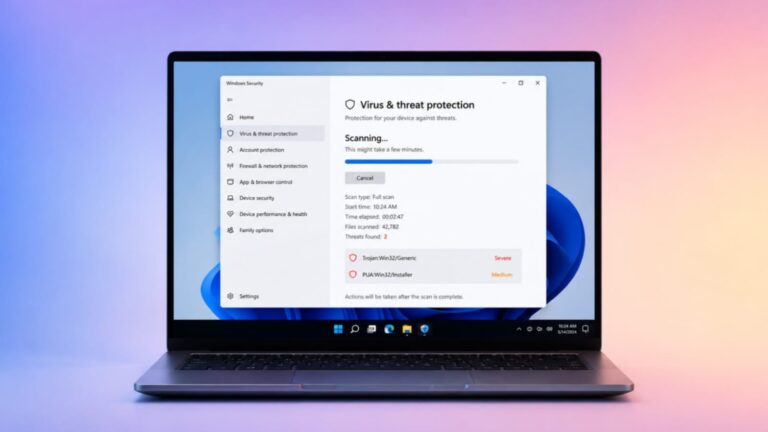
Corrupted system files create startup problems. Windows provides System File Checker support. This tool repairs damaged system files.
Run an SFC scan using Command Prompt. Allow the process to finish completely. Restart Windows and test startup speed.
3. Defragment Traditional Hard Drives
Hard drive fragmentation affects older HDD systems. Fragmented files take longer to access data. Defragmentation can improve boot performance.
Search Defragment and Optimize Drives. Select your hard drive carefully. Click Optimize and wait for completion.
This step mainly benefits traditional hard drives. SSDs do not require defragmentation.
4. Upgrade to an SSD and More RAM
Hard disk drives remain slower than SSDs. Windows performs much better using SSD storage. Startup speed improves dramatically after upgrading.
Additional RAM can also improve performance. More memory supports background processes efficiently. Boot times often become noticeably faster.
5. Adjust BIOS Settings
BIOS settings influence startup performance greatly. Enter BIOS during computer startup. Locate Boot Order settings first.
Move the Windows drive to top. This reduces unnecessary device checking.
Disable unused hardware devices when possible. Turn off unused ports and components. This reduces startup processing requirements.
Enable Fast Boot if available. Save all changes before exiting BIOS.
6. Reset or Reinstall Windows
Sometimes deeper issues remain unresolved. Resetting Windows may solve persistent problems. Always back up important files beforehand.
Open Settings and choose Recovery options. Select Reset This PC to continue.
Windows also offers reinstalling through updates. This option refreshes Windows without affecting data.
The End Note
Regular maintenance keeps systems running efficiently. These methods fix slow startup and help Windows 11 faster startup.