
Remove Virus on Windows and Mac using trusted security methods. Computer viruses damage files and reduce system performance badly.
Some malware steals passwords and important personal information. Safe online habits help users avoid dangerous security threats.
Key Notes:
- Safe Mode helps remove viruses more successfully.
- Phishing emails spread malware across many computer systems.
- Updated antivirus programs improve overall device protection.
Understanding Computer Viruses
What Is a Computer Virus?
A computer virus is a dangerous malicious software program. It spreads across computers and infects important system areas.
Many viruses create copies and infect additional programs automatically. Some viruses only affect internet browsers and online settings.
Other viruses damage files and operating system functions badly. Trojan viruses hide inside programs appearing safe and trusted.
Rootkit viruses bury themselves deeply inside important computer controls. Mixed malware infections often combine worms, Trojans, and viruses.
How Computer Viruses Spread
Cybercriminals commonly use phishing emails carrying infected harmful links. Users unknowingly download dangerous files or infected software programs.
Viruses also spread through removable storage devices easily.
Common Infection Sources
- Phishing emails carrying infected ZIP files.
- Unsafe links from unknown online websites.
- Free software downloaded from suspicious internet sources.
- USB drives containing dangerous infected files secretly.
- Shared network drives spreading malware across systems.
Once opened, infected files execute harmful virus code immediately. Malware then spreads across programs and connected network systems.
Device security and online privacy become seriously compromised afterward.
Identify Infection Signs
Slow Computer Performance
Programs may take longer loading than normal everyday speeds. Error messages about unresponsive applications may appear repeatedly afterward.
Viruses use system resources, reducing overall computer performance badly. Users can check memory usage using Task Manager easily.
Open Task Manager Using These Keys
- Press Ctrl, Alt, and Del together.
- Select the Performance tab from displayed options.
- Check memory and RAM usage carefully there.
Too many startup applications may also slow computers significantly.
Strange Browser Activity
Unexpected homepage changes often signal dangerous malware infections happening. Endless pop-ups asking urgent questions also indicate malware problems.
Suspicious pop-ups usually demand immediate actions from frightened users.
Avoid These Dangerous Actions
- Never click suspicious pop-up advertisements quickly.
- Avoid downloading unknown software from random websites.
- Never open strange email attachments immediately.
Update browsers regularly and run virus scans frequently afterward.
Frequent Crashes and Spam Messages
Blue screen crashes sometimes appear during serious malware attacks. Malware often interferes with operating system stability and performance badly.
Friends may report receiving strange messages from your accounts. Viruses sometimes send spam emails through infected computer systems automatically.
Protect Online Accounts Immediately
- Change passwords for important online accounts quickly.
- Enable multi-factor authentication for stronger account security.
- Use password managers for safer password storage.
Remove Virus Safely on Windows and Mac
Use Safe Mode Before Scanning
Malware hides inside registries, drives, and connected network systems. Trusted antivirus software provides safer and easier malware removal methods.
Windows Safe Mode Steps
- Restart your Windows computer carefully first.
- Press F8 repeatedly on older Windows versions.
- Windows 10 and 11 use Shift Restart settings.
- Select Safe Mode from displayed startup options.
Safe Mode loads essential programs while blocking malware activity.
Mac Safe Mode Steps
- Restart your Mac computer completely first.
- Hold Shift during the startup process continuously.
- Wait until the login screen appears successfully.
- “Safe Boot” confirms Safe Mode activation successfully.
Run Antivirus Scans Carefully
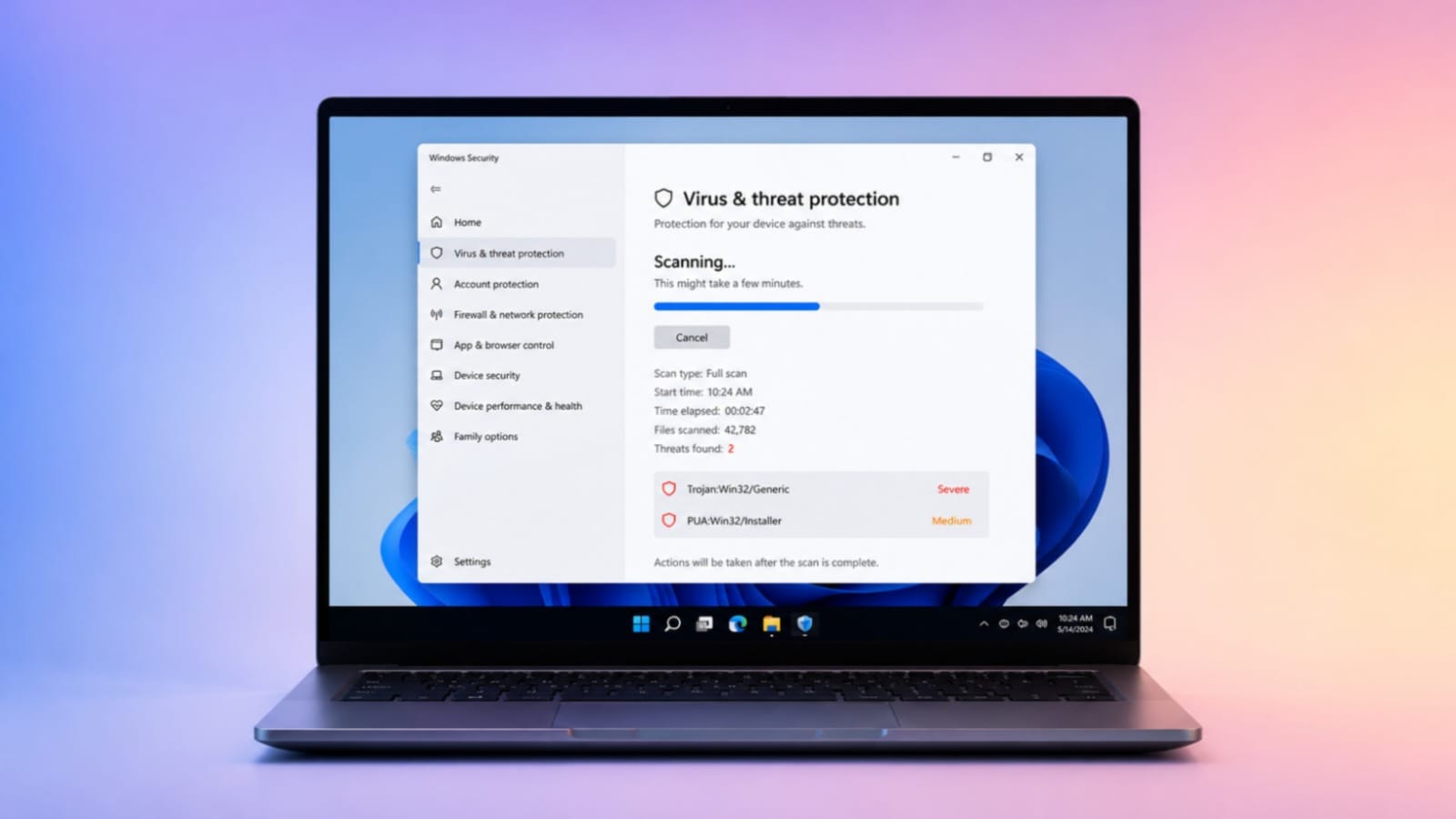
Run trusted antivirus programs after entering Safe Mode successfully. Multiple scans improve chances of finding hidden malware infections.
Delete or quarantine infected files after completing scanning procedures carefully.
Important Virus Removal Tips
- Uninstall suspicious applications downloaded recently online.
- Remove unknown browser extensions causing strange behavior.
- Delete temporary files using Disk Cleanup tools.
- Restart systems after every completed malware removal scan.
- Contact professionals if infections continue appearing repeatedly.
Keeping systems updated improves overall device protection greatly.
The End Note
Safe browsing habits prevent dangerous malware infections from spreading widely. Updated systems and strong passwords improve device protection daily.
Regular backups keep important files and information completely secure.